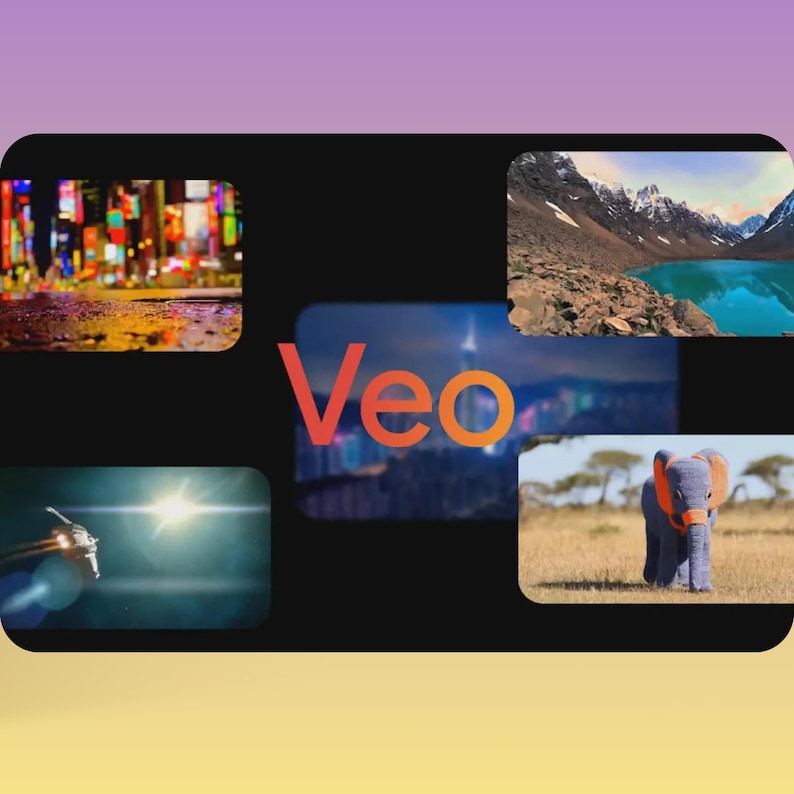
Transform your content creation with this AI Video Generation Workflow (n8n JSON Template) designed for VEO 3 AI video g
Please Sign In To Contact This Author
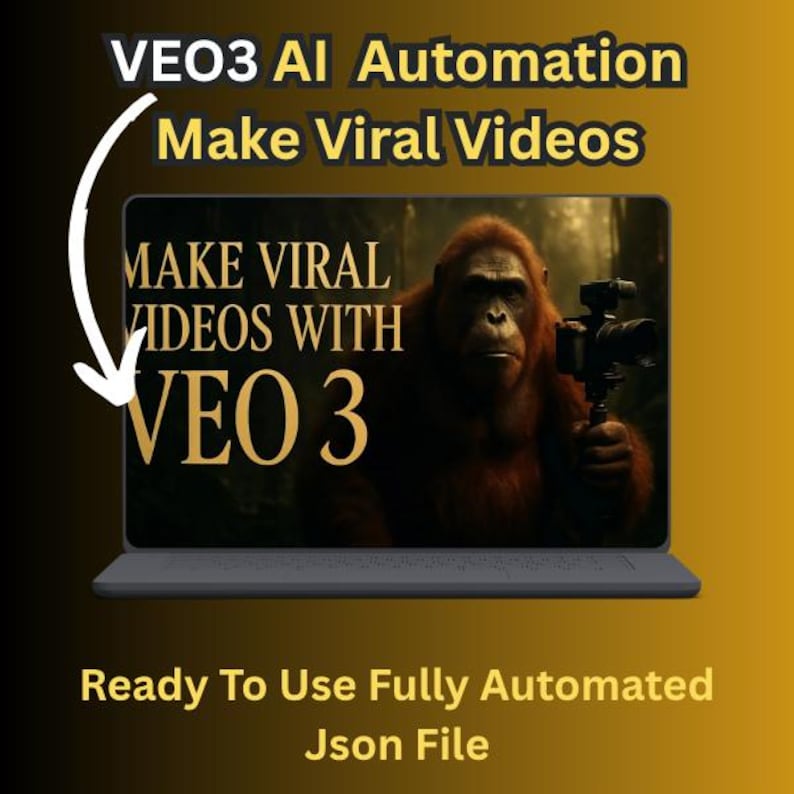
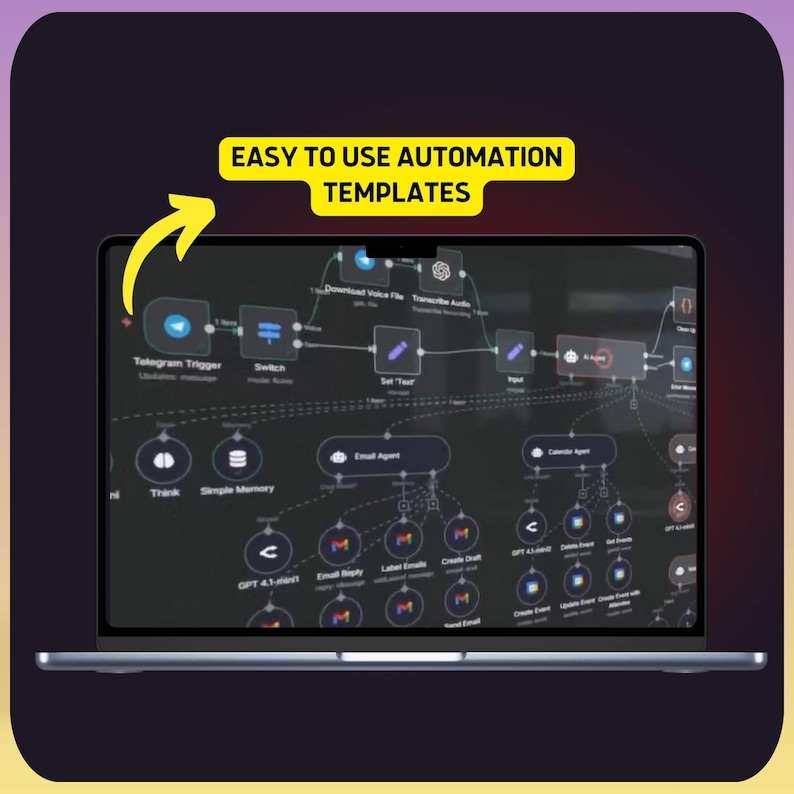
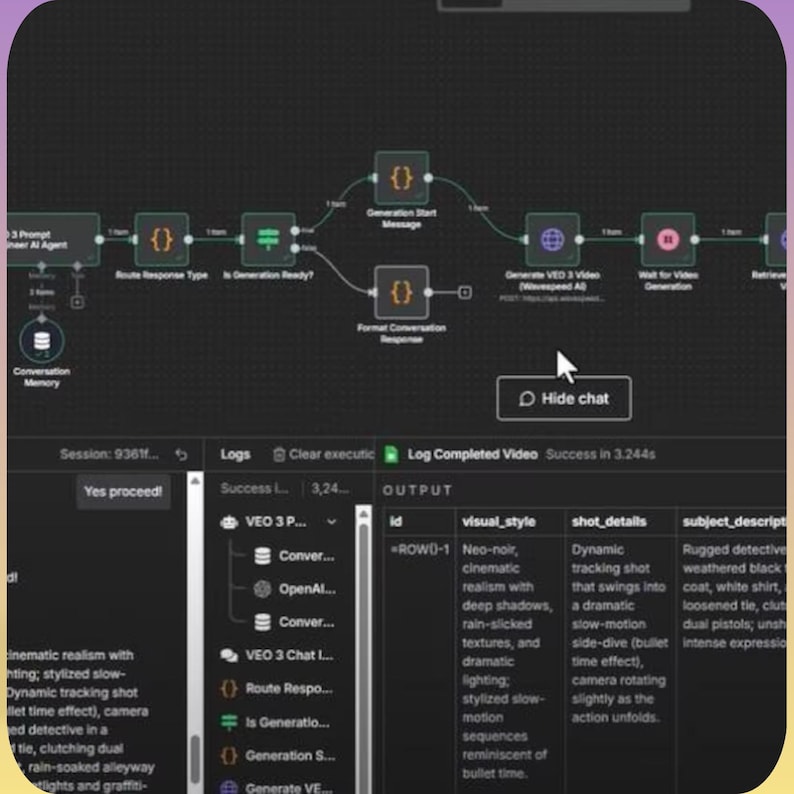
Transform your content creation with this AI Video Generation Workflow (n8n JSON Template) designed for VEO 3 AI video generation. This automation agent simplifies the entire video creation process—from gathering creative inputs to producing cinematic videos—without writing a single line of code Ai productivity. n8n workflow
AI Agent assists you in creating perfect VEO video prompts
Supports Manual Mode (detailed inputs) & Auto Theme Mode (instant generation)
Automates video generation via VEO 3 API & WaveSpeed AI ,Ai Automatio
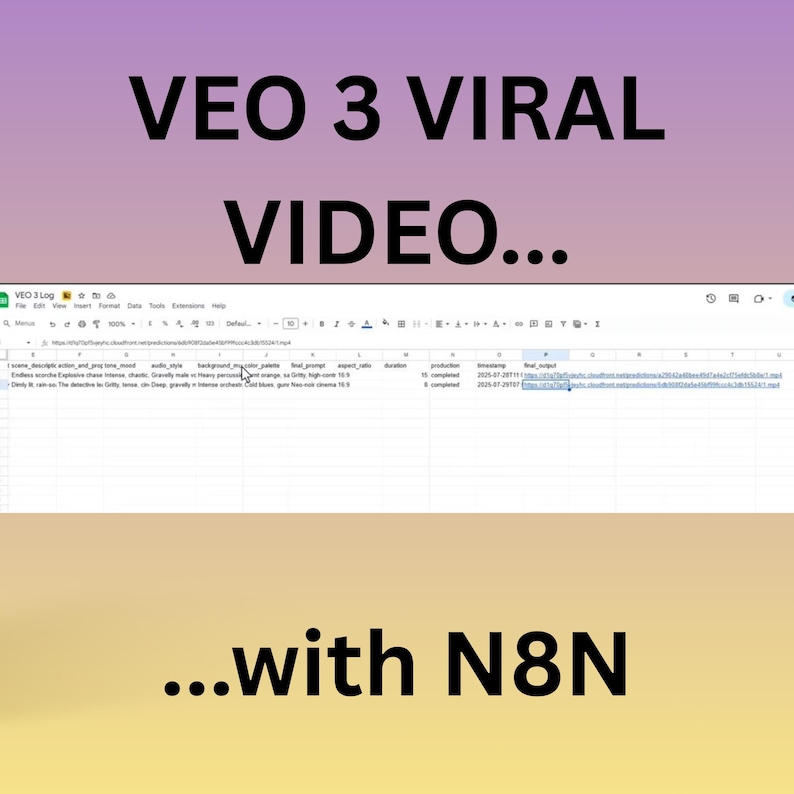
Logs video outputs and creative details in Google Sheets
No-code friendly workflow built entirely in n8n
1x n8n Workflow (JSON File)
Perfect for:
Digital Creators & Marketers
AI Video Content Creators
Short-Form Video Production
Automation Enthusiasts
Step-by-Step Import & Setup Guide for VEO 3 AI Video Automation Workflow (n8n JSON)
1. Prerequisites:
An active n8n account (Self-hosted or Cloud)
VEO 3 API Key (Ensure your account is API-enabled)
Google Sheets API Credentials (for logging outputs)
The provided n8n JSON Workflow file
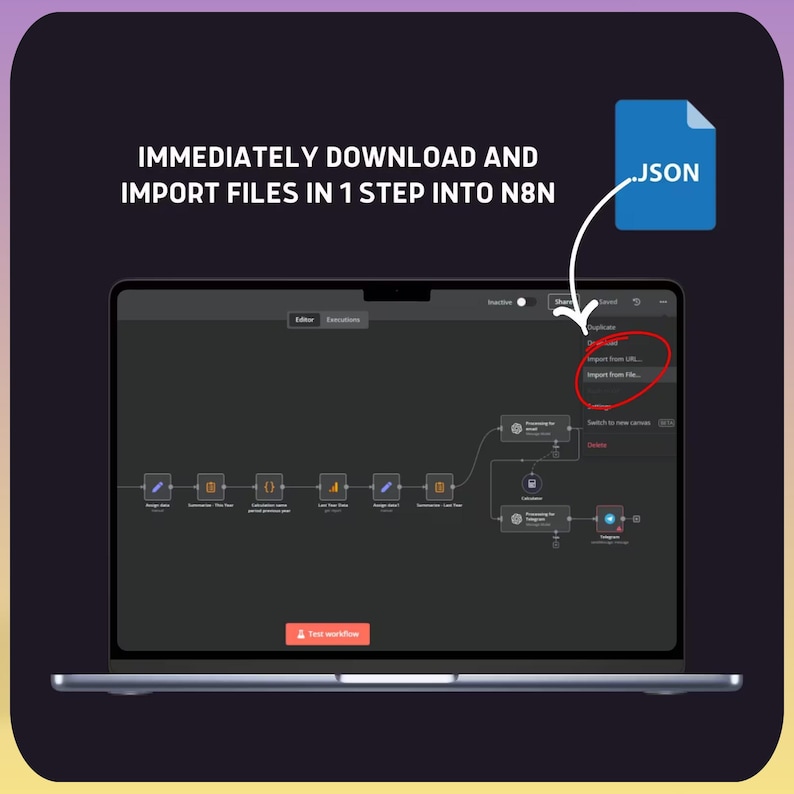
2. Importing the Workflow into n8n:
Login to your n8n dashboard.
Go to “Workflows” ? “Import Workflow”.
Upload the provided VEO3 JSON file.
Click “Save” after importing.
3. Configure Credentials in n8n:
Go to “Credentials” in n8n.
Add:
HTTP Request Authentication (for VEO API)
Google Sheets Credentials (OAuth2 or Service Account)
Link these credentials to their respective nodes in the workflow.
4. Customize Workflow Settings:
In the Manual Mode node, define your desired:
Scene Details
Style & Mood Settings
Audio/Voiceover Preferences
Or use Auto Theme Mode for quick prompt generation.
5. Running the Workflow:
Once setup is complete, click “Execute Workflow”.
The AI Agent will send prompt requests to VEO API, fetch video URLs, and log them in Google Sheets.
Download your generated videos via the output link.
6. Optional Adjustments:
Add Email Notifications.
Customize Google Sheets columns.
Automate scheduling with n8n Trigger Nodes (Cron, Webhook, etc.)
Support:
For any setup issues, feel free to message me directly via HostBas.